

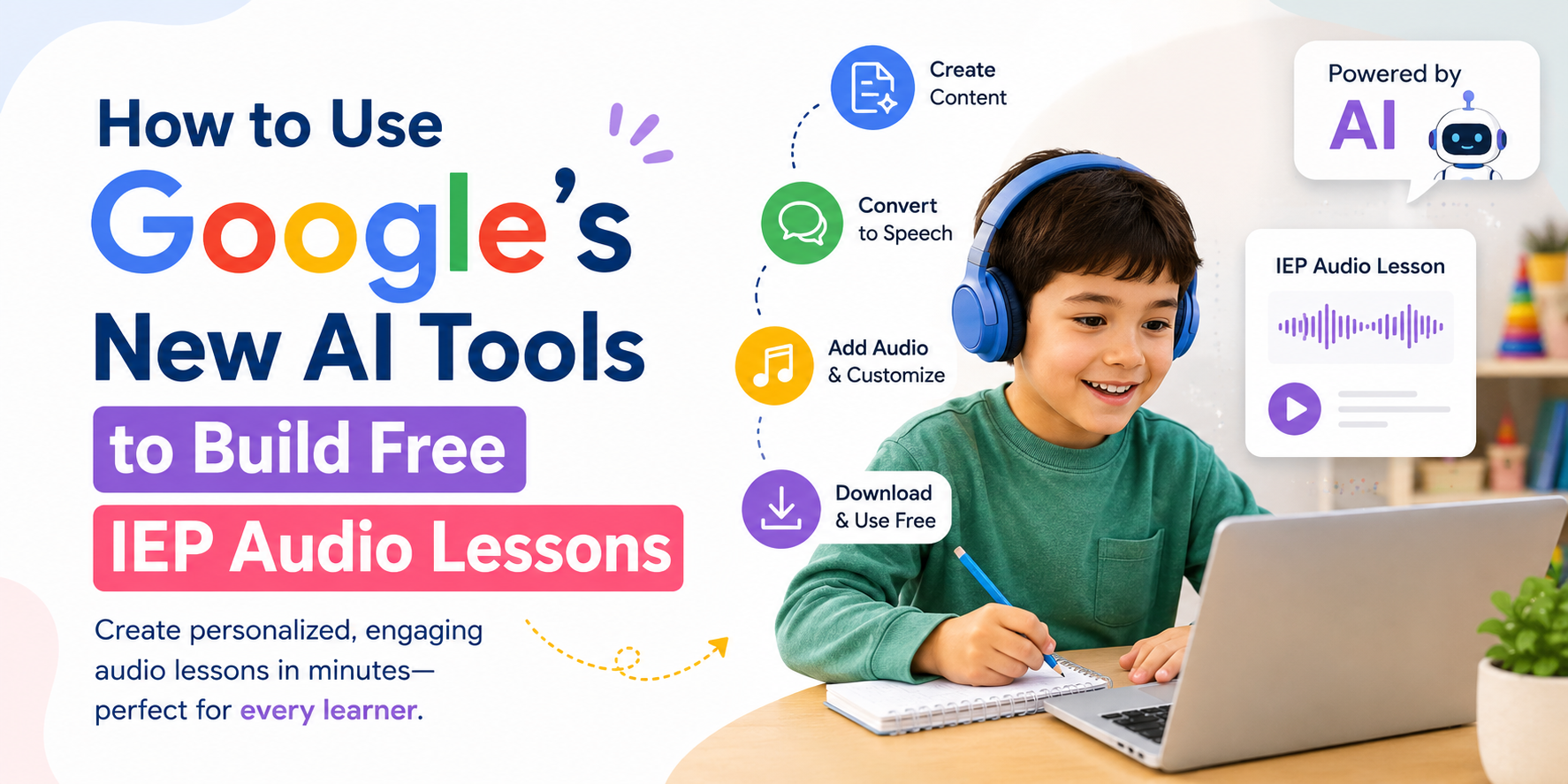
🎧 How to Use Google’s New AI Tools to Build Free IEP Audio Lessons: 2026 Special Ed Teacher Workflow
Google’s New AI tools — built directly into Google Workspace in 2026 — can transform a standard reading assignment into a narrated, interactive audio lesson for dyslexic students in minutes, without leaving Google Docs. In short: yes, this is real, it is free for eligible Workspace users, and it is one of the most powerful accessibility upgrades special education teachers have received in years.
This guide gives you the exact workflow, step by step. 💛

- 🔍 What Google’s New AI Features Actually Are in 2026
- 💛 Why This Matters So Much for Dyslexic Students
- 📊 The Numbers: Dyslexia, Audio Learning, and the IEP Gap
- 🛠️ Tool Overview: Google’s New AI Across Workspace for SpEd Use
- 🎙️ Tool 1: Gemini Audio in Google Docs — The Core Workflow Tool
- 🎙️ Tool 2: Audio Buttons — Student-Facing Accessibility Within the Document
- 🎙️ Tool 3: NotebookLM — For Interactive, Conversational Audio Learning
- ✅ THE 7-STEP WORKFLOW: READING ASSIGNMENT TO AUDIO LESSON
- 🎙️ Advanced Workflow: Using NotebookLM for Interactive Audio
- 🎬 Using Google Vids to Create Narrated Visual Lessons
- 🔍 What You Must Not Miss About This Topic
- 1. 🔊 The Two Audio Modes Are Completely Different — and Most Teachers Only Find One
- 2. 📌 Audio Buttons Are a Student Independence Feature Almost Nobody Discusses
- 3. ⚙️ Plan Requirements Are Almost Never Clearly Stated
- 4. 🌐 The Data Privacy Angle for Student Content Is Rarely Addressed
- 💙 A Teacher’s Story: The Reading That Finally Clicked
- ❓ FAQs About Google’s New AI for IEP Audio Lessons
- Q: How do I turn a Google Doc into an audio lesson for dyslexic students?
- Q: Is Google’s new Gemini audio feature free for schools?
- Q: What is the difference between “Listen to this tab” and “Listen to document summary” in Google Docs?
- Q: Can I insert play buttons into a Google Doc so students can click to hear sections?
- Q: What is NotebookLM and how does it help with audio lessons for students with dyslexia?
- Q: Does Google’s Gemini audio feature work in languages other than English?
- Q: Can I use Google Vids to create narrated video lessons for students with dyslexia?
- 🔗 Trusted Resources for Educators
- 💙 Final Thoughts: The Lesson Your Students Have Been Waiting For
🔍 What Google’s New AI Features Actually Are in 2026
Before walking through the workflow, let us be precise about exactly which tools this guide covers — because understanding what Google’s New AI actually includes in 2026 directly shapes how you use it.
As of 2026, Gemini AI is built into all paid Google Workspace plans at no extra cost. Business Standard and above include Gemini across all apps — Docs, Sheets, Slides, Meet, and Drive — plus full Google AI Pro access. The old “Gemini for Workspace” add-on has been discontinued, and these features are now embedded directly into the plans many schools already use.
For special education teachers specifically, the most important Google’s New AI features in 2026 are:
| Tool | What It Does | Where to Find It |
|---|---|---|
| Gemini Audio in Google Docs | Turns any document into a narrated audio version with selectable voices and speeds | Tools → Audio |
| Gemini Audio Summaries | Creates a podcast-style AI-summarised audio digest of long documents | Tools → Audio → Listen to document summary |
| Audio Buttons (insertable) | Embeds clickable play buttons directly inside a student-facing document | Insert → Audio buttons |
| NotebookLM | Creates interactive, conversational audio “podcasts” from uploaded source material | notebooklm.google.com |
| Google Vids | Builds narrated video presentations from scripts or topic descriptions | vids.google.com |
| Docs Live (Voice-Driven Writing) | Lets teachers draft and structure documents using natural speech | Rolling out 2026 |
Each of these tools addresses a specific, different need in the dyslexia-accessible audio lesson workflow described below.
💛 Why This Matters So Much for Dyslexic Students
This is not about convenience. For dyslexic students, access to audio versions of text is a documented, research-backed accessibility need — one that directly affects their ability to access academic content on equal terms with their peers.
Developmental dyslexia is considered one of the most prevalent yet complicated neurodevelopmental conditions affecting education worldwide. It is a persistent disorder that impairs accurate and fluent word recognition, spelling, and decoding, despite adequate intelligence, educational opportunities, and instruction.
International studies consistently indicate that approximately 5–17% of children are affected by dyslexia.
Furthermore, the research on audio support specifically is clear and consistent. Audio books and text-to-speech applications are among the most important accessibility tools for dyslexic learners. With training, it is even possible to listen to audio content played back at four times the normal rate — with full comprehension.
The challenge that has persisted for most special educators is not knowing that audio lessons help — it is the time and technical skill required to create them consistently for every assignment across a full IEP caseload. Google’s New AI tools in 2026 directly address this exact barrier, reducing audio lesson creation from hours of manual work to a matter of minutes inside tools teachers already use every day.
📊 The Numbers: Dyslexia, Audio Learning, and the IEP Gap
| Statistic | Figure | Source |
|---|---|---|
| Global prevalence of dyslexia in primary school children (meta-analysis) | 7.10% (pooled) | PMC — Prevalence of Developmental Dyslexia Meta-Analysis |
| Percentage of all specific learning disabilities that dyslexia represents | ~80% | Crown Counseling — Learning Disabilities Statistics, 2025 |
| US children affected by dyslexia (1 in 5 estimate) | ~20% (broader reading difficulty spectrum) | Spellings.app — Dyslexia Statistics 2025 |
| Children with dyslexia who also have ADHD | 25–40% | Dyslexia Reading Well — Statistics |
| Early intervention effectiveness (K–1st grade vs 4th+ grade) | 90–95% vs 45% | Spellings.app — Dyslexia Statistics 2025 |
| Boys vs girls prevalence of developmental dyslexia | 9.22% vs 4.66% | PMC — DD Meta-Analysis |
| Google Workspace global users (platform scale) | 3 billion+ | FindArticles — Google Docs Gemini Audio Feature, 2026 |
| Google Workspace Gemini Audio: available voice styles | Narrator, Educator, Teacher, Persuader, Coach + more | TechRadar — Google Docs Gemini Audio, 2026 |
💡 What this tells educators: Dyslexia affects a significant, well-documented proportion of every classroom. The research on audio learning support is settled. The barrier has always been practical: creating accessible audio versions of assignments consistently, across a full caseload, without spending hours on production. Google’s New AI has now meaningfully reduced that barrier for the first time.
🛠️ Tool Overview: Google’s New AI Across Workspace for SpEd Use
🎙️ Tool 1: Gemini Audio in Google Docs — The Core Workflow Tool
Audio Summaries blend summarization and text-to-speech so teachers can press play and produce a concise overview of a document. Controls let users switch between different voices — such as Narrator, Educator, or Teacher — and adjust playback speed to match how fast students need to digest the material.
There are two distinct audio modes every SpEd teacher needs to understand:
- “Listen to this tab” — A literal, word-for-word reading of the full document. Best for ensuring dyslexic students access the exact text of a reading assignment as written.
- “Listen to document summary” — An AI-generated podcast-style digest of the document’s key content. Best for pre-teaching, comprehension preview, or supporting students who need the main idea before engaging with full text.
Audio summaries in Google Docs — distinct from the existing read-aloud accessibility feature which reads word for word — generate a podcast-style digest of a document’s key content directly from the Tools menu. They are fast, adjustable in playback speed and narrator style, and work across multiple tabs.
🎙️ Tool 2: Audio Buttons — Student-Facing Accessibility Within the Document
This is one of Google’s New AI features most educators do not yet know about, and it changes how student-facing documents can be designed.
There are two ways to access the Gemini-powered reader, including via Tools → Audio where a sound clip will be AI-generated. Document authors can also choose to insert audio buttons directly into the document via Insert → Audio buttons so that readers can quickly click the button for a full read-out. Buttons can be customized with different styles and colors.
For IEP lesson materials specifically, this means a teacher can build a single document — with reading text, comprehension questions, and vocabulary terms — and embed a clickable play button at each section. Dyslexic students can then independently access the audio version of each section exactly when they need it, without requesting help or switching between apps.
🎙️ Tool 3: NotebookLM — For Interactive, Conversational Audio Learning
The new integration, which rolled out in January 2026, lets teachers bring NotebookLM generated notebooks directly into Gemini, selecting one or several as the grounding context for a prompt. NotebookLM can generate high-value outputs including Audio Overviews and Mind Maps.
NotebookLM’s “Audio Overview” feature generates a conversational, podcast-style discussion between two AI voices exploring the content of uploaded material. This is qualitatively different from a text-to-speech reading — it sounds like a genuine discussion, which many students with dyslexia find significantly more engaging.
✅ THE 7-STEP WORKFLOW: READING ASSIGNMENT TO AUDIO LESSON
This is the complete, practical workflow — exactly what a special education teacher does, step by step, to turn a standard reading into an accessible audio lesson using Google’s New AI tools.

| Step | Action | Tool Used | Time Required |
|---|---|---|---|
| 1 | Open or create the reading assignment in Google Docs | Google Docs | Already done |
| 2 | Simplify the reading level using the Gemini sidebar if needed | Gemini sidebar → “Help me write” | 2–3 minutes |
| 3 | Generate a word-for-word audio version | Tools → Audio → Listen to this tab | Under 60 seconds |
| 4 | Generate an AI summary audio for pre-teaching | Tools → Audio → Listen to document summary | Under 60 seconds |
| 5 | Select voice style appropriate for your students (Educator, Narrator, or Teacher) | Audio player → Change voice | 30 seconds |
| 6 | Set playback speed (start at 0.75x for processing support, allow students to adjust) | Audio player → Playback speed | 30 seconds |
| 7 | Insert audio buttons at key sections for student-facing independent use | Insert → Audio buttons | 2–3 minutes |
Total time for a complete audio-accessible lesson document: under 10 minutes.
📋 Step-by-Step Detailed Instructions
Step 1: Open your document in Google Docs
Your reading assignment should already exist as a Google Doc, or you can paste text from any source directly into a new Doc.
Step 2: Simplify language using the Gemini sidebar (optional but recommended)
Click the Gemini icon in the top-right corner of Google Docs to open the sidebar. Type: “Rewrite this text at a Grade [X] reading level for a student with dyslexia. Use short sentences. Use common words.” Review and accept the suggestions.
Step 3: Generate the full audio version
At the top of Google Docs, click Tools → Audio → Listen to this tab. The audio player appears at the bottom of your screen. Press play. The AI voice reads the entire document aloud.
Step 4: Generate the AI summary audio
Click Tools → Audio → Listen to document summary. Gemini generates a concise, conversational audio overview of the document’s key points. This is your pre-teaching audio — ideal for playing to the whole class before a reading assignment.
Step 5: Select the right voice
In the audio player, click More → Change voice. Choose from options including Narrator, Educator, and Teacher. For most classroom contexts, “Educator” voice is clearest and most accessible. Preview each option and select what sounds best for your students.
Step 6: Set a comfortable playback speed
Click Playback speed in the audio player. Set to 0.75x for initial lesson delivery with students who need additional processing time. Let individual students adjust to their own preferred speed independently.
Step 7: Insert audio buttons into the student-facing document
Place your cursor at the beginning of a paragraph or section. Click Insert → Audio buttons → Listen to tab. A clickable play button appears inline in the document. Repeat this for each section, vocabulary list, or comprehension question. Students can then play each section independently as they work through the document.
🎙️ Advanced Workflow: Using NotebookLM for Interactive Audio
For teachers who want to go beyond a simple text-to-audio reading and create genuinely interactive, engaging audio content, Google’s New AI tool NotebookLM offers the next level.
How to use NotebookLM for IEP audio lessons:
- Go to notebooklm.google.com and sign in with your school Google account
- Create a new notebook and upload your reading assignment (PDF, Google Doc link, or pasted text)
- Click “Audio Overview” in the right-hand panel
- NotebookLM generates a 5–10 minute conversational podcast-style audio discussion of the material, featuring two distinct AI voices exploring the content naturally
Why this format specifically works for dyslexic learners: The conversational format of the Audio Overview — two voices discussing, asking questions, and explaining concepts — mirrors the kind of oral discussion many dyslexic students find far easier to retain than a linear reading. It is multimodal learning through audio storytelling, not just text-to-speech.
🎬 Using Google Vids to Create Narrated Visual Lessons
For teachers who want to pair audio narration with visual content, Google’s New AI in Google Vids (available on Business and Education plans) offers a powerful option.
Google Vids is an AI-native video creation app built directly into Workspace. It’s designed for presentation-style videos: product demos, training content, and educational explainers.
With Gemini integrated, you describe a video concept, and Vids generates a script, visual suggestions, and a structured storyboard. Video generation using Veo 3.1, including AI avatars, is available through the AI Expanded Access add-on.
SpEd-specific workflow with Google Vids:
- Go to vids.google.com from your school Google account
- Enter a topic or paste your reading assignment text as the source material
- Ask Vids to create a narrated explainer video of the key content
- Review the generated script and storyboard, personalising for your student’s IEP goals
For dyslexic students specifically, the combination of visual content and AI narration addresses multiple learning modalities simultaneously — reducing reliance on the text-reading process that creates their primary barrier.
🔍 What You Must Not Miss About This Topic
Here is what you should never c skip for a SpEd context.
1. 🔊 The Two Audio Modes Are Completely Different — and Most Teachers Only Find One
The Audio Summary feature — a Gemini-powered tool that generates a podcast-style digest — is distinct from the existing “Listen to this tab” feature that reads word for word. These serve completely different pedagogical purposes.
Pre-teaching a complex text requires the summary version. Ensuring a student accesses the exact assignment text requires the full read-aloud version. Most general-audience guides describe only one, leaving teachers unaware of the other.
2. 📌 Audio Buttons Are a Student Independence Feature Almost Nobody Discusses
The ability to insert clickable audio play buttons directly into a student-facing document — at paragraph, section, or question level — transforms a standard document into an independently navigable audio lesson. This directly supports IEP goals around independent work completion and self-directed learning. This feature appears in almost no SpEd-focused content, despite being one of the most practically valuable for classrooms.
3. ⚙️ Plan Requirements Are Almost Never Clearly Stated
Business Standard/Plus and Enterprise Standard/Plus accounts will be among the first to get access to the Gemini Audio feature, as well as customers with the Gemini Education, Education Premium, Business, or Enterprise add-ons. Google AI Pro and Ultra plans also get access.
However, at launch the feature only works in English and on desktop versions of Docs. Most articles describe these features as universally available without clarifying which plans include them or the current English-only limitation — important practical details for any school administrator or teacher evaluating whether to use them.
4. 🌐 The Data Privacy Angle for Student Content Is Rarely Addressed
For enterprises, Google’s Workspace commitments state customer content isn’t used to train general AI models without consent, and Gemini features inherit admin controls for enablement and access.
Organizations should review existing data loss prevention, audit, and retention policies to ensure audio outputs align with compliance requirements. For schools specifically, this means always checking with your school’s IT administrator to confirm Gemini features are enabled appropriately for student data before using them with IEP-related materials.
💙 A Teacher’s Story: The Reading That Finally Clicked
Ms. Nwosu had taught fifth grade special education for six years. She knew her student, Elijah — a bright, imaginative boy with severe dyslexia — was capable of engaging deeply with grade-level content. His comprehension in oral discussions was consistently strong. But the moment a reading assignment appeared in front of him, something shifted. He would stare at the page, then at the window, then at his hands.
“Every modification I made helped a little,” she says. “Simplified text. Reduced font sizes. Highlighted vocabulary. But it was always me doing the work, and it never felt like enough. And it took so much time.”
After hearing about Google’s New AI audio features in Docs at a professional development session, she decided to try converting Elijah’s next social studies reading.
“I opened the document, went to Tools, clicked Audio. I chose the Educator voice. It took about forty-five seconds total,” she recalls. “Then I went back and added audio buttons at the beginning of each paragraph so he could play them one at a time.”
She shared the document via Google Classroom without saying anything specific to Elijah beforehand.
“He opened it on his tablet, saw the play buttons, and just… pressed one. Listened. Pressed the next. Listened. He worked through the whole reading in twenty-two minutes — which is faster than any modified reading had ever taken him.”
During discussion afterward, Elijah accurately described three key concepts from the text, unprompted.
“He looked at me afterward and said, ‘Can we do that again tomorrow?'” Ms. Nwosu pauses. “That is the first time he has ever asked for more reading time. That matters more than any metric I can report on his IEP.”
She now builds audio buttons into every reading assignment for her students. The workflow takes her less than ten minutes per document.
“The technology was not magic,” she reflects. “It was just the right tool, finally in a place I could actually reach it.”
❓ FAQs About Google’s New AI for IEP Audio Lessons
Q: How do I turn a Google Doc into an audio lesson for dyslexic students?
Open your Google Doc, click Tools at the top menu, then select Audio. You will see two options: “Listen to this tab” for a word-for-word reading of the document, and “Listen to document summary” for an AI-generated audio overview of the key content. Choose the voice style (Educator, Narrator, or Teacher) and adjust playback speed in the audio player that appears.
Q: Is Google’s new Gemini audio feature free for schools?
The Gemini Audio feature in Google Docs is included in eligible Google Workspace Education plans including Gemini Education and Education Premium add-ons, as well as Business Standard/Plus and Enterprise plans. Schools should check with their Google Workspace administrator to confirm which plan their institution uses and whether Gemini features are enabled for their domain.
Q: What is the difference between “Listen to this tab” and “Listen to document summary” in Google Docs?
“Listen to this tab” reads the document exactly as written, word for word. “Listen to document summary” uses Gemini AI to generate a conversational, podcast-style overview of the document’s key content — similar to a spoken briefing rather than a full reading. For IEP audio lessons, “Listen to this tab” gives students the exact text, while “Listen to document summary” works well for pre-teaching or comprehension preview.
Q: Can I insert play buttons into a Google Doc so students can click to hear sections?
Yes. Go to Insert → Audio buttons → Listen to tab to insert a clickable play button at your chosen location in the document. You can customise the button’s style and colour. Students click the button to hear that section read aloud. This allows dyslexic students to navigate audio content independently within their document.
Q: What is NotebookLM and how does it help with audio lessons for students with dyslexia?
NotebookLM is a Google AI research tool that can turn uploaded source materials into conversational audio discussions — called “Audio Overviews” — featuring two AI voices exploring the content in natural dialogue. This format is particularly engaging for dyslexic students because the conversational style aids comprehension and retention compared to a standard linear text reading. Access it at notebooklm.google.com with a Google account.
Q: Does Google’s Gemini audio feature work in languages other than English?
At launch, the Gemini Audio feature in Google Docs works in English only and on desktop versions of Google Docs. Google has not confirmed a specific timeline for additional language support. Schools serving multilingual students should monitor Google’s Workspace updates blog for future language expansion announcements.
Q: Can I use Google Vids to create narrated video lessons for students with dyslexia?
Yes. Google Vids is an AI-native video creation tool within Google Workspace that generates narrated video presentations from a topic description or script. For dyslexic students, the combination of audio narration and visual content in a video format addresses multiple learning modalities simultaneously, reducing the reliance on text reading alone.
🔗 Trusted Resources for Educators
| Resource | What It Offers | Link |
|---|---|---|
| 📖 Google Docs — Official Gemini Audio Help | Step-by-step official documentation for audio features | support.google.com/docs |
| 🎙️ NotebookLM | Free Google AI tool for interactive audio lesson creation | notebooklm.google.com |
| 🎬 Google Vids | AI-native narrated video creation within Workspace | vids.google.com |
| 📊 PMC — Dyslexia Prevalence Meta-Analysis | Peer-reviewed research on dyslexia in primary school children | ncbi.nlm.nih.gov |
| 🏫 W3C Web Content Accessibility Guidelines | Official audio and accessibility standards for educational content | w3.org/WAI/WCAG21 |
| 📚 International Dyslexia Association | Resources on dyslexia and evidence-based intervention | dyslexiaida.org |
| 🖥️ Google Workspace for Education | Overview of education plans and AI feature access | workspace.google.com/education |
💙 Final Thoughts: The Lesson Your Students Have Been Waiting For
Google’s New AI audio features in Google Docs do not replace great teaching. They do not replace the relationship between a skilled special educator and a student who is finally beginning to trust that learning is possible for them.
What they do is remove one of the most persistent, practical barriers that has stood between dyslexic students and grade-level content for years: the gap between what a student can understand when they hear it and what the text-on-a-page demands of their decoding process.
Ten minutes per document. A play button they click themselves. An Educator voice reading clearly at 0.75x speed. A student who asked — for the first time — if they could do it again tomorrow.
That is what accessible AI looks like when it is actually working. 💛
📝 This article is for informational and educational purposes only. Google Workspace features, plan inclusions, and availability may change; always verify current capabilities directly through your school’s Google Workspace administrator and at workspace.google.com. Always review your school’s data privacy policies before using AI features with student-specific IEP content.


